


JetSign: Fill & Sign PDF Forms
4.71.80K Reviews
App Specs
- Version
- 2.7.9
- Updated On
- License
- Free
- Downloads
- 1,000,000+
- Developer
- JetSign
- Categories
- Business
- Platform
- Android, iOS
Screenshots
 Analysis by AppCompare
When a document needs a signature while I’m away from my desk, I’d rather finish it on my phone than find a printer, sign a page, and scan it back in. That is the everyday problem JetSign is built to tackle. It’s a business app from JetSign for filling and signing documents, with tools to add remote signers and send completed files as PDFs. I find that focused approach most useful for routine paperwork, where speed and a readable final file matter more than a full desktop document-management setup.
The app is free to download, and its age rating is Everyone. JetSign has a 4.8 average from around 34,000 ratings, with more than a million installs. Those figures suggest it has found an audience, though they don’t tell me whether its paid options suit every workflow. In-app purchases range from $4.99 to $299.99 per item, so I’d treat the free access as a way to assess the basics rather than assume every feature or level of use will cost nothing.
What free access means in practice
For someone who signs the occasional form, the main value is avoiding the print-and-scan cycle. You can bring a document into the app, fill fields, place a signature, and produce a PDF to share. That sequence is the point: each step can happen on the phone, which is handy when a signed copy is needed before you get back to a computer.
I’d be more cautious if I were choosing it for frequent business use. The app offers in-app purchases, and the amount varies considerably across items. Before relying on it for a team or a steady stream of documents, I’d check which paid option matches the actual workflow and whether the terms fit the expected volume. A free download is a low-friction way to try the app, but it isn’t proof that unlimited use is free.
Getting Started with JetSign
First things first, getting JetSign up and running is a breeze. Available on both Android and iOS, the download and installation process is swift and straightforward. Once you fire it up, you’re greeted with a clean and intuitive interface. No clutter, just a simple layout that’s easy to navigate. I love how the design doesn’t overwhelm you with a ton of options right off the bat.
Features That Stand Out
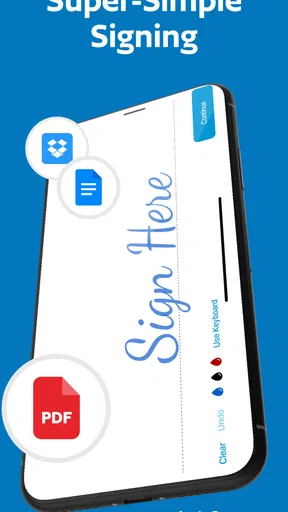
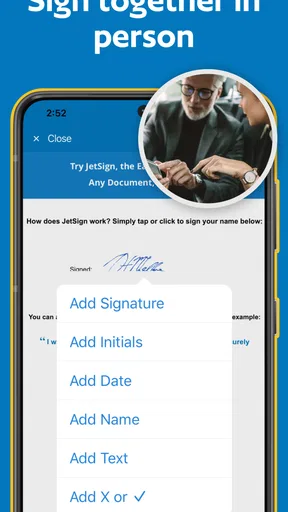
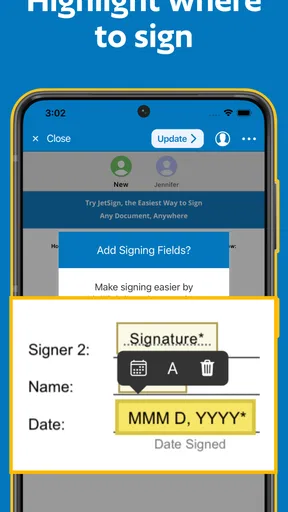
Now, let’s talk about what this app can actually do. The core feature, of course, is the ability to sign PDFs. You can either draw your signature using your finger or stylus, or you can upload an image of your signature. What’s cool is that JetSign supports multiple signatures, so whether you’re signing for yourself or as a representative, it’s got you covered.
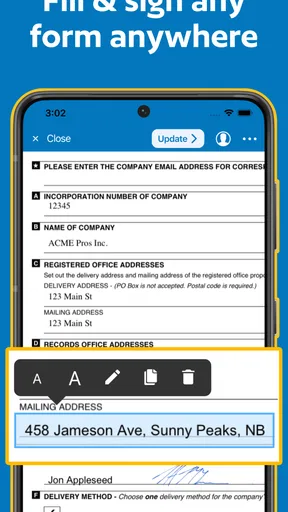
Filling forms is another area where this app shines. It automatically detects fillable fields, making it super easy to input text or checkboxes. I’ve used other apps where this feature is hit or miss, but here, it works smoothly every time.
Worth Reading Before You Choose

EA SPORTS FC Mobile 26 Is a Bigger Football Game, but It Takes Time

Flipboard Shows What News Apps Must Do Beyond the Feed

Switching to Android Auto Means Rethinking Your Driving Routine

Google Calendar Makes a Crowded Week Easier to Manage

Ludo King Makes the Most of the Minutes Between Plans

Baby Panda World Brings Quick Play to Modern Phones, but Its Game Library Feels Busy
A practical workflow for forms and signatures
Automatic field detection is convenient when a PDF was built with proper form fields, but not every document is structured that way. If a form is simply a flat scan or has blank spaces that aren’t interactive, I would check each page before sending it back rather than assume every field will be recognized. That small review is worthwhile: it can catch a missed date or checkbox before the recipient has to ask for a correction.
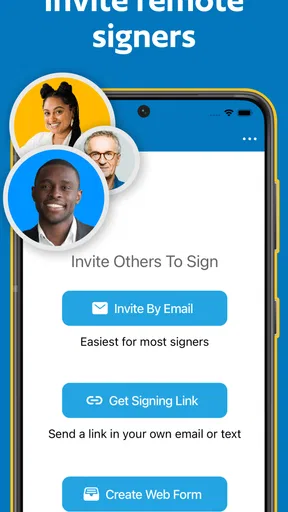
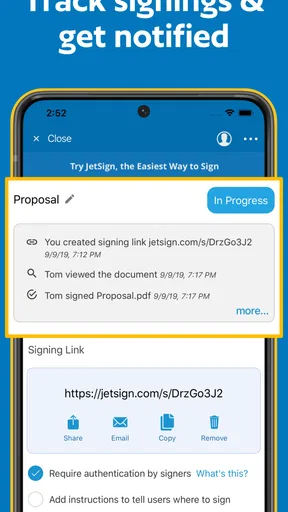
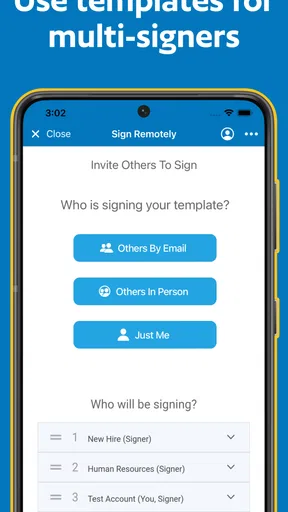
For a typical everyday job, imagine a contractor sending a customer a short approval form while both are on the move. The customer can open the document, add the requested details and signature, then return a PDF without needing access to a scanner. If a second person must sign remotely, JetSign’s remote-signer option can help keep the handoff within the document workflow. I’d still confirm that the finished file includes every required signature before treating the paperwork as complete.
There’s also a useful distinction between a drawn signature and an image of one. Drawing directly can be the quicker choice for a one-off form, while an uploaded image may feel more consistent across repeated documents. I’d avoid using a signature image casually on a shared device, though: it is a reusable representation, so think about who can access that device and file before saving or reusing it.
Security and Privacy
With digital signatures, security is always a concern. The app offers encryption to ensure your documents remain private. Plus, it doesn’t store your signatures on their servers, which is a huge plus in today’s privacy-conscious world. You can sign documents while feeling secure about your data.
Matching the tool to the document
For ordinary forms, a mobile signing app can be a sensible alternative to printing, signing by hand, and scanning. JetSign’s appeal is that it combines filling, signing, remote signers, and PDF output in one place. Compared with opening a general PDF reader, its purpose-built signing flow may save steps when the task is simply to complete and return a form.
That convenience doesn’t make every electronic signature workflow interchangeable. If a document requires a particular identity-checking process, a formal audit trail, or an organization-wide approval policy, I would verify those requirements before choosing any phone-based signing tool. A dedicated business platform or a desktop process may be a better fit when compliance rules matter more than convenience. For a routine permission form or basic agreement, the lighter mobile route is easier to justify.
My practical tip is to keep the original document until the completed PDF has been checked and delivered. Open the exported copy, scan the pages for misplaced text or signatures, and make sure the recipient can identify which version is final. This is especially helpful when a form has multiple signers or when a field is close to a printed instruction. A quick check prevents a tidy-looking workflow from ending with an incomplete attachment.
Integration and Compatibility
One of the things I appreciate is how well JetSign plays with other apps. You can easily import documents from cloud services like Google Drive and Dropbox, or even from your email. The seamless integration means you don’t have to jump through hoops to get your documents into the app.
And once you’re done signing, exporting is just as simple. Whether you need to email the document, save it back to a cloud service, or just store it on your device, the app gives you plenty of options.
Where it fits—and where it doesn’t
I see the strongest case for JetSign with freelancers, small-business owners, and anyone who regularly receives a form that needs a quick signature. A person handling occasional client approvals can use a phone to complete the task between appointments, while a household can return routine paperwork without borrowing a printer. The app’s business focus is useful even for individuals: a document can move from inbox to signed PDF without turning into a separate printing project.
I’d hesitate to recommend it as the main system for a large team that needs shared templates, centralized tracking, or tightly controlled approval stages. Those needs go beyond simply filling and signing a document, and they can make a more comprehensive e-signature service worth considering. It may also be unnecessary if you rarely sign PDFs and already have a comfortable desktop workflow. The best reason to install it is a recurring need for mobile document completion, not curiosity about collecting another utility.
User Experience
Using JetSign is a genuinely pleasant experience. The app is responsive and doesn’t lag, even with larger documents. I found the entire process from importing to signing to be quick and efficient. It’s one of those apps that just works, without any fuss.
I also liked how the app doesn’t bombard you with ads. There’s a premium version available, which unlocks additional features like unlimited signing and access to all premium templates. However, the free version is more than sufficient for basic needs.
Version, device fit, and paid value
The current version is 2.7.8, and the minimum operating-system requirement is 8.0. That makes checking device compatibility a straightforward first step if you’re installing it on an older phone or tablet. The app was released on March 6, 2019, so it has been available for several years; for me, the more useful decision point is still whether it handles the documents I actually receive.
Because paid items span a broad range, I wouldn’t buy on the assumption that a particular purchase is automatically worthwhile. First try a real, non-sensitive sample form, see how the fields and signature placement behave, and note whether your usual signing frequency runs into a limit. Then compare the purchase that addresses that limit with your alternatives. If you only sign occasionally, a paid tier may offer little practical return; if repeated signing is part of your work, the time saved could matter more than the upfront cost.
Wrapping It Up
So, is JetSign worth your time? Absolutely. Whether you’re a professional who needs to sign documents on the go, or just someone tired of the traditional print-sign-scan routine, this app can save you a lot of hassle. It’s easy to use, integrates well with other services, and prioritizes your security and privacy. Give it a whirl, and you might just find it becomes an essential part of your digital toolkit.
My recommendation is strongest for people whose paperwork is straightforward and whose main goal is getting a completed PDF back to the right person. Start with a document you can safely test, check the final file, and only consider a purchase if the free experience shows a real limitation for your routine. If your work depends on formal verification, complex team controls, or extensive document tracking, choose a service designed around those requirements instead. For everyday signatures on the go, JetSign is a practical place to begin.
Pros
- User-friendly interface for quick navigation.
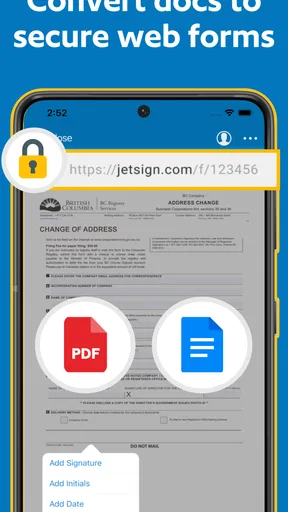
- Supports various file formats beyond PDFs.
- Offline functionality enhances usability.
- Secure encryption for document safety.
- Quick setup with minimal permissions needed.
Cons
- Requires subscription for advanced features.
- Limited customization options for signatures.
- Occasional syncing issues with cloud services.
- Lacks multi-language support.
- No batch processing for multiple documents.
FAQs for JetSign: Fill & Sign PDF Forms
What platforms is JetSign compatible with?
JetSign is available for both Android and iOS devices, making it easy to fill and sign PDF forms on the go. You can download it from the Google Play Store or the Apple App Store. Additionally, JetSign is also compatible with desktop platforms, ensuring seamless access across all your devices.
Can I use JetSign offline?
Yes, JetSign allows you to fill and sign documents offline, making it convenient for users who may not always have internet access. Once you're back online, any changes made will sync automatically. This feature is especially useful for professionals who travel frequently and need reliable access to their documents.
Is JetSign secure for handling sensitive documents?
JetSign employs industry-standard encryption to ensure that your documents are secure. It also provides options for password protection and secure sharing. This makes it a reliable choice for handling confidential information, giving users peace of mind when dealing with sensitive documents.
Are there any limitations on the number of documents I can sign?
JetSign offers different subscription plans to cater to various user needs. While the free version may have limitations on the number of documents you can sign, the premium versions unlock unlimited access, along with additional features such as cloud storage and advanced collaboration tools.
Does JetSign offer any customization options for signatures?
Yes, JetSign provides several customization options for creating your signature. You can draw your signature using your finger or stylus, upload an image of your signature, or even type it out with different fonts and styles. This flexibility ensures that your digital signature looks exactly the way you want it.


